
Download Jujutsu Kaisen Anime Template – Free Anime PowerPoint, Google Slides & Canva
Item ID: SCF00731
Google Slide,PowerPoint,Canva
100% Fully Customizable
Free to use
Liked the template? Support SlideChef!
Give us Donation! Help to keep our Templates Free for ever
Hi there! We hope you’re enjoying SlideChef for your presentations. As a free platform, we rely on donations to keep things running. If you find our resources helpful, please consider a small donation. Thank you!
How to Use the Jujutsu Kaisen Presentation Template
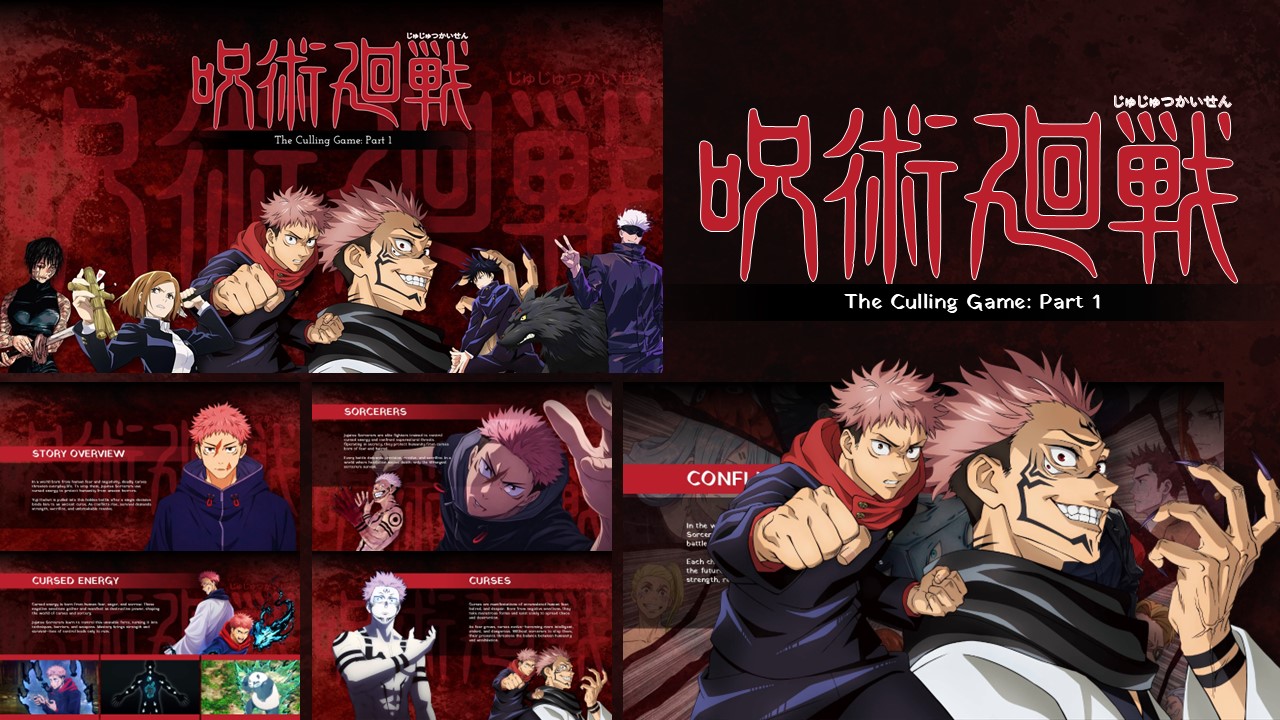
Unleash your domain expansion and dominate your next presentation with this dark, high-energy anime deck. Featuring striking deep crimson backgrounds, dynamic jagged speech-bubble frames, and stylized sorcery-themed typography, this template is perfectly built for character analyses, plot summaries, and anime reviews.
Here is your step-by-step guide to customizing the deck across Microsoft PowerPoint, Google Slides, and Canva:
For Microsoft PowerPoint Users
Step 1: Download and Unlock: Save the template file to your computer. Open it in PowerPoint and click Enable Editing on the top yellow notification bar to unlock the custom graphic layers, frames, and text fields.
Step 2: Customize Cursed Typography: Click directly inside the brush-stroke style text headers (like Enter the World of Sorcery or Plot Summary) to overwrite the placeholder copy with your own presentation details.
Step 3: Swap Sorcerer and Curse Visuals: To update the image placeholders with your favorite screenshots of Gojo, Sukuna, or custom fan art, right-click any image, select Change Picture, and upload a file from your device. The template's custom jagged and curved shapes will automatically frame your new photo.
Step 4: Map Out Character Comparisons: Use the specialized radial node layouts to easily break down character traits, tactical abilities, or domain conditions by clicking the text markers surrounding the main character graphics.
Step 5: Launch the Presentation: Save your completed file, head to the Slide Show tab on the top menu bar, and click From Beginning to showcase your deck in full screen.
For Google Slides Users
Step 1: Save a Copy to Your Drive: Click the provided Google Slides access link. When the preview template window loads, click the Make a copy button to securely save an editable version directly into your personal Google Drive account.
Step 2: Rewrite Content Fields: Double-click any header or body paragraph to edit the text directly inside your browser window. Google Slides automatically saves your text edits in real-time.
Step 3: Replace Layout Images: Select an image asset within the presentation. Click Replace image in the upper toolbar, select Upload from computer, and choose your new anime screenshots to instantly populate the existing geometric shapes.
Step 4: Organize Your Presentation Flow: Use the left-hand slide thumbnail panel to drag and drop slides into a new order, right-click to duplicate high-impact comparison templates, or delete layouts you do not need.
Step 5: Present Right From the Cloud: Click the Present button next to your user icon in the top right corner to display your customized anime slides full screen directly from your web browser.
For Canva Users
Step 1: Duplicate the Master Blueprint: Click your provided Canva link to open the presentation workspace. Go to File in the top-left menu bar and select Make a copy to save a fully editable version directly to your personal Canva dashboard.
Step 2: Edit Text and Textures: Double-click any text box to type your headers. Use the floating top toolbar to adjust text sizes, alignment, or modify font styles to capture the perfect dramatic anime aesthetic.
Step 3: Drag-and-Drop Your Media: Upload your choice of official anime graphics or custom artwork to your Canva sidebar library, then simply drag and drop the files straight into the pre-shaped image frames.
Step 4: Tweak Design Accents: Click individual design assets—like the background color blocks, floating emblem icons, or stylized dividing lines—to move them around the workspace canvas or adjust their transparency.
Step 5: Stream Live or Save: Review your final layout in grid view, then click the Present icon in the upper right corner to run the presentation full screen right from the browser window.