
<< Back to template
Download Free Netflix Template for PowerPoint and Google Slides with Animations
Google Slide,PowerPoint,Canva
100% Fully Customizable
Free to use
Liked the template? Support SlideChef!
Give us Donation! Help to keep our Templates Free for ever
Hi there! We hope you’re enjoying SlideChef for your presentations. As a free platform, we rely on donations to keep things running. If you find our resources helpful, please consider a small donation. Thank you!
How to Use the Netflix Inspired Presentation Template
Bring Hollywood-style glamour to your next presentation! Whether you want to hook your audience on a dark cinematic canvas using Microsoft PowerPoint, Google Slides, or Canva, here is exactly how to use each variation:
Option 1: Microsoft PowerPoint Version
- Download and Launch: Click the PowerPoint download button to save the .pptx file to your device. Open it and click Enable Editing at the top bar if prompted.
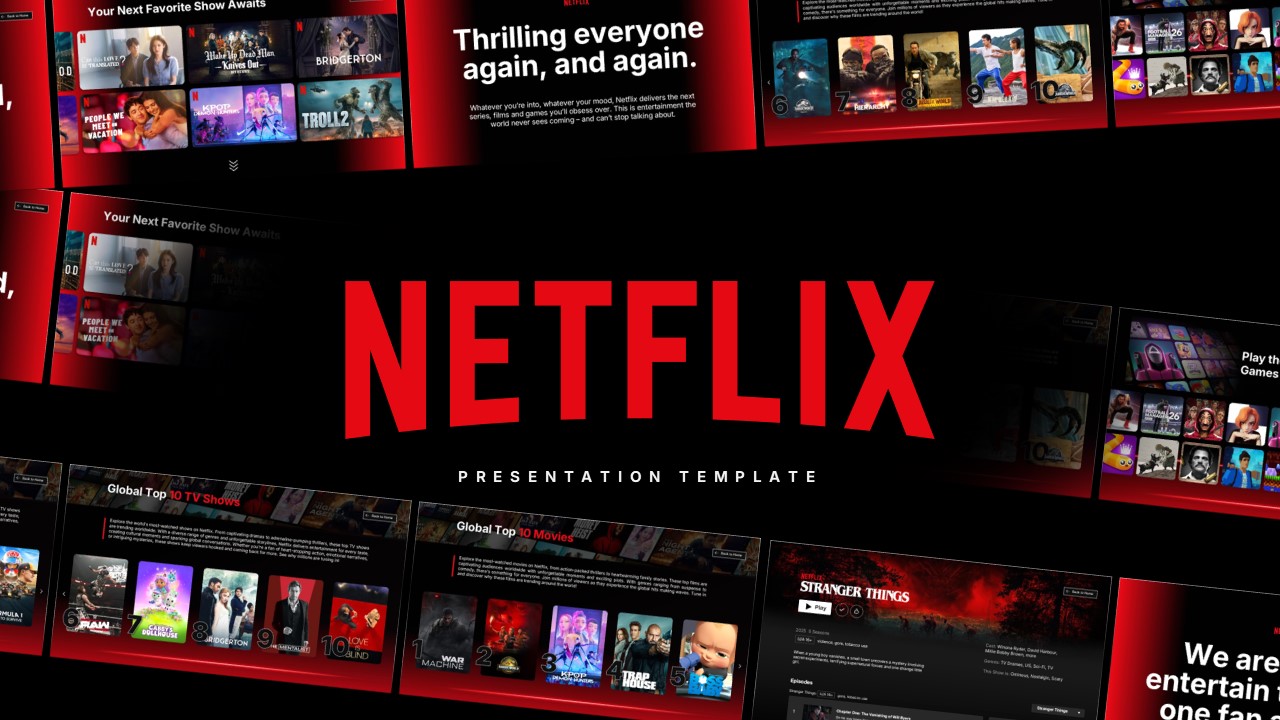
- Customize the Netflix Interface: Click inside any pre-formatted text box on the Netflix Homepage or Recent Release slides to overwrite the default placeholder words with your own project titles.
- Swap Images on the Black Background: Right-click any placeholder image and select "Change Picture" to drop in your own high-quality graphics, screenshots, or product photos without losing the dark theme layout.
- Experience Cinematic Morph Transitions: Take advantage of PowerPoint's native engine! The built-in animations and smooth morph transitions are fully active to give your slides a premium streaming app motion.
- Go Full Screen: Save your edited presentation deck, navigate to the Slide Show tab, click From Beginning, and get ready to hook your viewers within the first 60 seconds.
Option 2: Google Slides Version
- Copy to Your Drive: Click the Google Slides access link and choose Make a Copy when prompted to save the creative template directly into your personal Google Drive.
- Edit Directly in Your Browser: Highlight any text line—like the Continue Watching header—and type in your notes. The fonts are already perfectly configured to match the classic entertainment app style.
- Insert New Media: Select any graphic frame, click Replace Image on the top toolbar, and upload your own images or icons to seamlessly update the visual backdrop.
- Organize Your Story Elements: Easily right-click slides in the left-hand panel to duplicate your favorite charts and diagrams or delete layout pages you do not need for your timeline.
- Present and Collaborate: Click the Present button in the top right corner to pitch straight from your browser, or share the link to collaborate live with your classmates or team members.
Option 3: Canva Version
- Open and Copy the Template: Click the provided Canva link to load the presentation layout in your browser. To make it editable, click on File in the top menu bar and select Make a copy to duplicate the design into your personal dashboard.
- Effortless Drag-and-Drop Editing: Upload your own photos, team headshots, or campaign images to your Canva account, then drag and drop them directly into the pre-shaped mockups on the slides.
- Customize Graphics & Colors: Double-click text blocks to modify font sizes, or use Canva's intuitive asset panel to move iconic illustrations and adjust the signature red accents with a single click.
- Rearrange with Grid View: Switch to Canva's grid view to easily duplicate layout pages, drag slides to reorder your narrative arc, or expand your presentation with extra slides.
- Present Globally or Export: Click Present to display your visually stunning masterpiece directly from the cloud in full-screen mode, or click Share to download your final presentation in your preferred format.