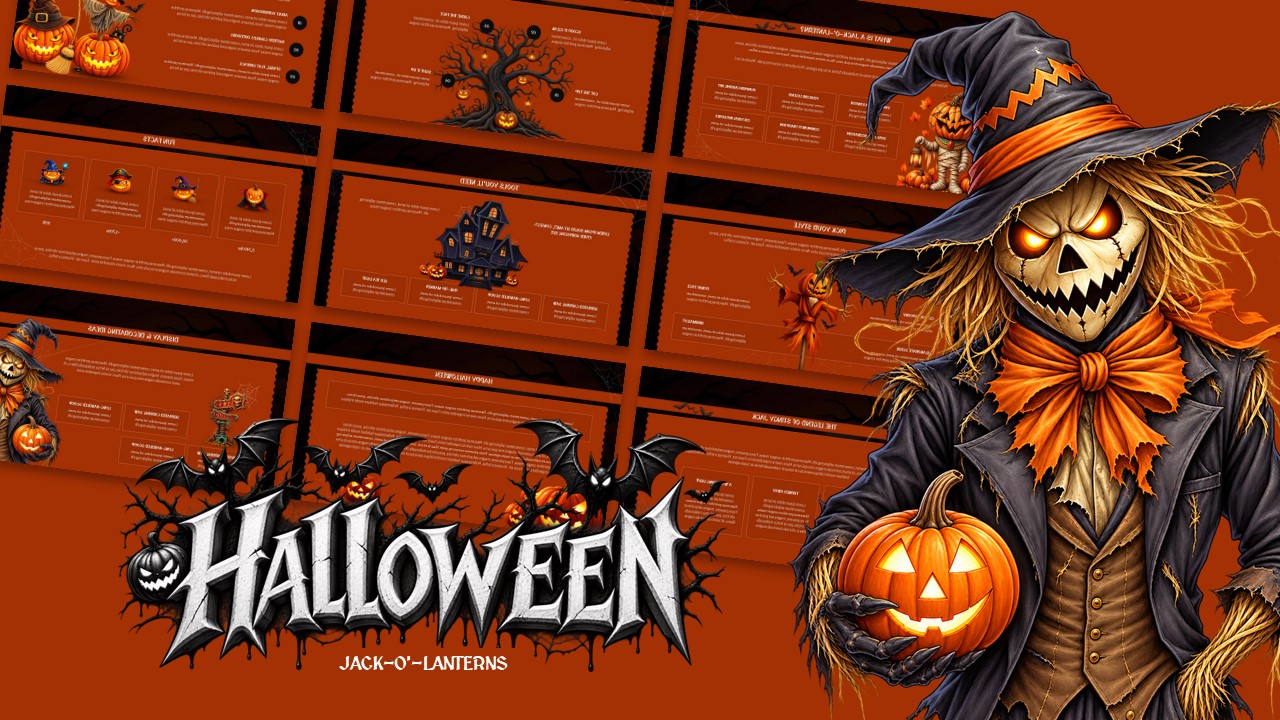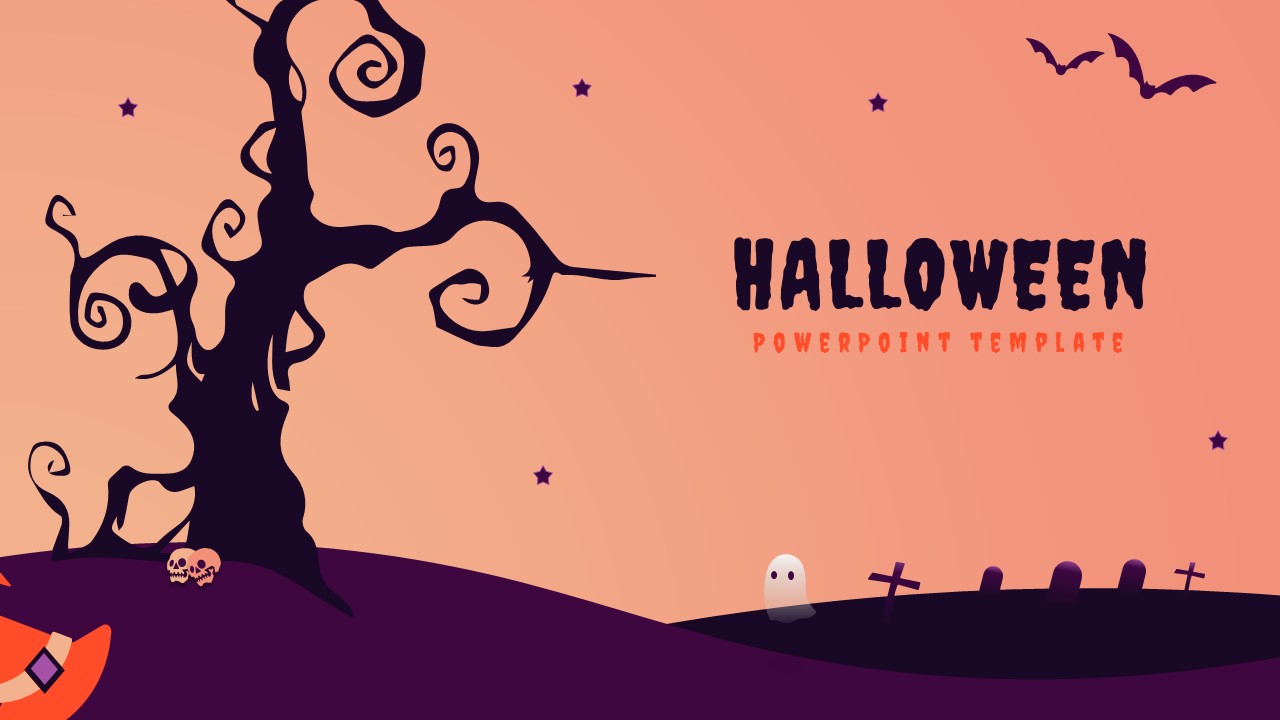

Download Free Spooky Halloween Slide Backgrounds for PowerPoint & Google Slides
Item ID: SCF00597
Google Slide,PowerPoint
100% Fully Customizable
Free to use
Liked the template? Support SlideChef!
Give us Donation! Help to keep our Templates Free for ever
Hi there! We hope you’re enjoying SlideChef for your presentations. As a free platform, we rely on donations to keep things running. If you find our resources helpful, please consider a small donation. Thank you!
How to Use These Spooky Halloween Backgrounds in PowerPoint & Google Slides
Using these free backgrounds in your preferred presentation software takes just a few clicks. Follow the simple steps below to apply them to a single slide or your entire presentation.
Option 1: Using with Google Slides
- Download the Asset: Save the high-resolution background image to your computer or Google Drive.
- Open Your Presentation: Launch Google Slides and open an existing presentation or create a new blank deck.
- Set the Background: In the top toolbar, click Slide > Change background (or right-click an empty area of the slide and select Change background).
- Upload the Image: Click Choose image, upload your downloaded SlideChef background, and hit Done.
- Apply Globally (Optional): If you want the background across every slide in the deck, click Add to theme before selecting Done.
- Add Your Content: Insert text boxes, shapes, or icons over the open areas of the design.
Option 2: Using with Microsoft PowerPoint
- Open Your Deck: Launch PowerPoint and open your presentation.
- Access Background Settings: Right-click anywhere on the blank slide area and select Format Background... (or navigate to the Design tab in the ribbon and click Format Background on the far right).
- Insert the Graphic: In the sidebar menu, select Picture or texture fill, then click Insert... under Picture source.
- Choose Your File: Select From a File, navigate to your downloaded SlideChef background image, and click Insert.
- Apply to All Slides (Optional): At the bottom of the Format Background pane, click Apply to All to set the theme across your entire slideshow.
- Customize: Overlay your titles, bullet points, and graphics cleanly within the high-contrast display area.