
Download Free Spotify Google Slides Template PowerPoint & Canva
Item ID: SCF00301
Google Slide,PowerPoint,Canva
100% Fully Customizable
Free to use
Liked the template? Support SlideChef!
Give us Donation! Help to keep our Templates Free for ever
Hi there! We hope you’re enjoying SlideChef for your presentations. As a free platform, we rely on donations to keep things running. If you find our resources helpful, please consider a small donation. Thank you!
How to Use the Spotify Presentation Template
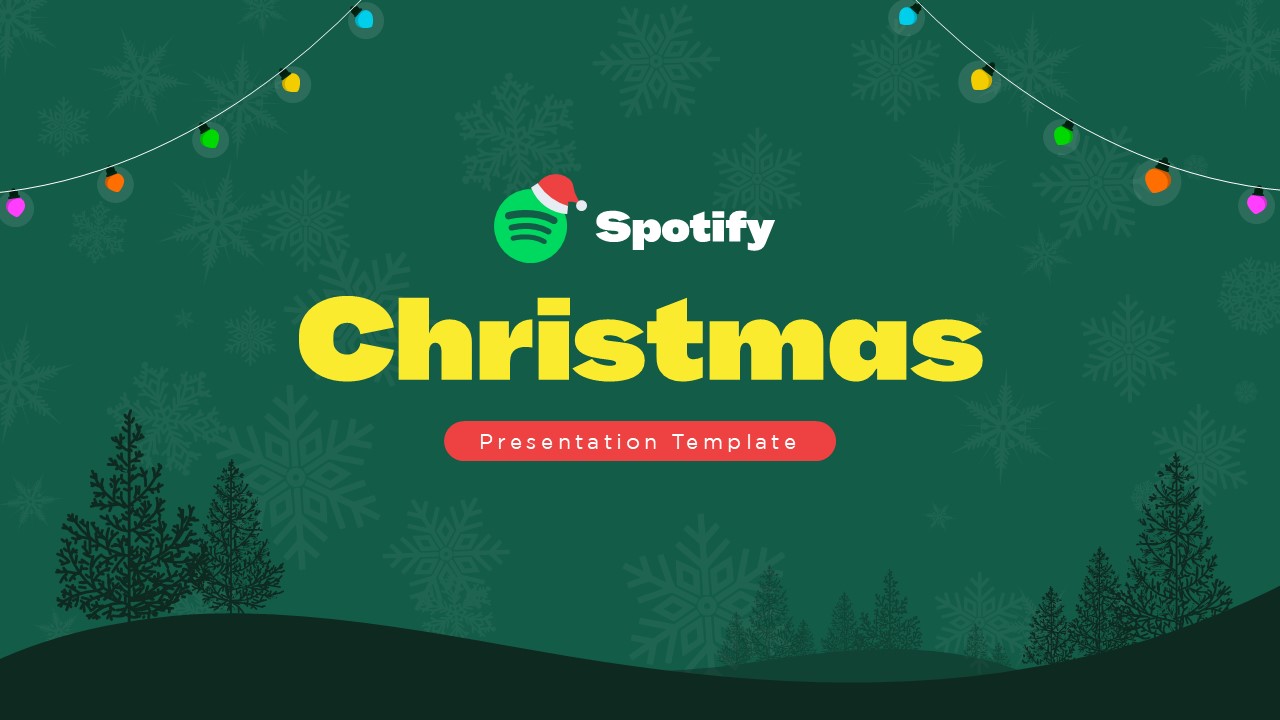
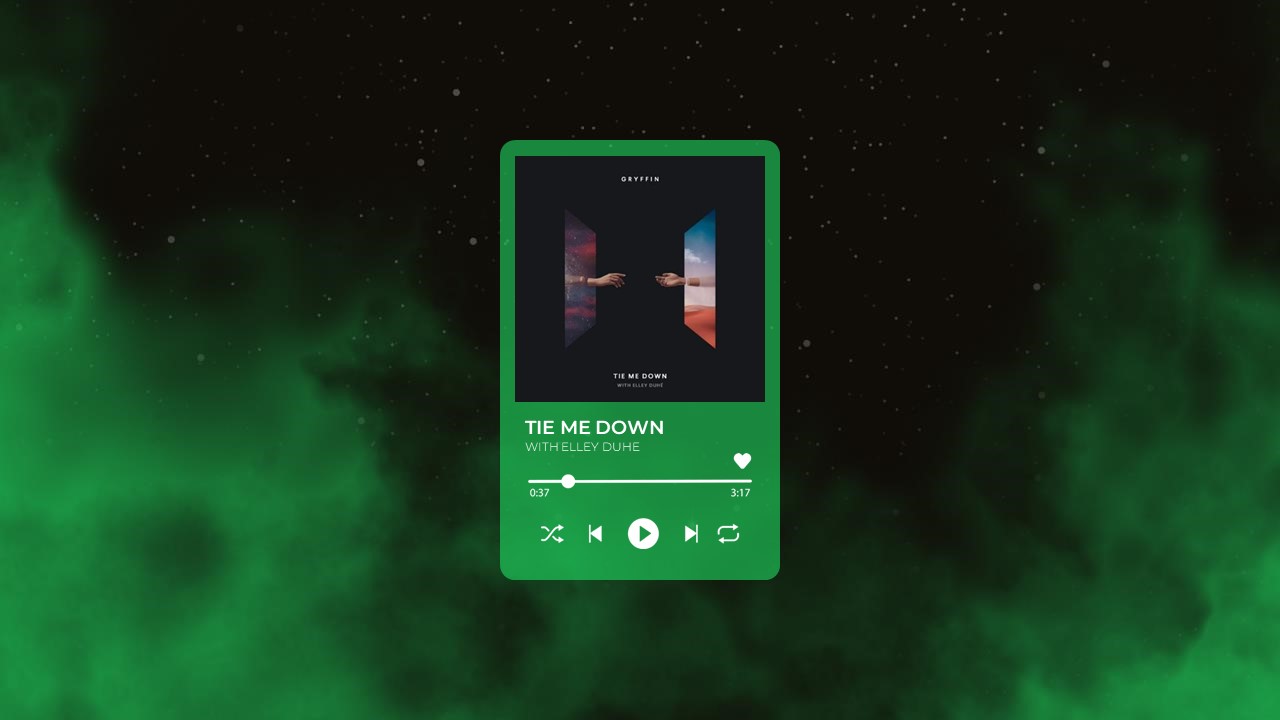
Hit play on your next big idea! This 12-slide template mimics the look of the Spotify app with its iconic black-and-green theme. Whether you are pitch-decking a new startup, presenting a school lesson, or showing off a creative portfolio, here is your quick setup guide for all three platforms:
Step-by-Step for Microsoft PowerPoint
- Unlock the Deck: Download the presentation file to your device. Open it and click Enable Editing on the top notification bar to start customizing.
- Input Your Data: Click inside any text box across the 20 slides—such as the Welcome Page, Services list, or Pricing tables—and type in your own details.
- Swap the Graphics: Change the imagery by right-clicking a placeholder photo or phone mockup, selecting Change Picture, and choosing a file from your computer.
- Tailor the Tracklist: Delete the slides you do not need or duplicate pages like "Our Team" to add more group members to your deck.
- Go Full Screen: Save your progress, click the Slide Show tab at the very top, and select From Beginning to launch your presentation.
Step-by-Step for Google Slides
- Claim Your Copy: Click the Google Slides link and hit Make a Copy to safely save this theme to your personal Google Drive.
- Edit in the Cloud: Double-click any title, bullet point, or statistic directly in your web browser to rewrite the text with your project facts.
- Replace the Visuals: Click once on a placeholder image, select Replace Image from the top toolbar menu, and upload your team headshots or project photos.
- Share and Collaborate: Click the blue Share button in the top right corner to invite teammates to edit the music-themed slides with you in real-time.
- Start Your Talk: When you are ready to show your audience, simply click the Present button next to your profile icon.
Step-by-Step for Canva
- Duplicate the Layout: Click the provided link to open the design. Click on File in the upper-left menu and choose Make a copy to duplicate the slides into your Canva dashboard.
- Drag-and-Drop Media: Upload your graphics or artwork to your Canva account, then drag and drop them straight into the pre-shaped Spotify asset frames.
- Adjust App Elements: Click on the green accent bars, playful icons, or dark backgrounds to tweak the colors and sizes using the simple editing panels on the left.
- Organize the Order: Use the grid view at the bottom of the screen to quickly reorder your slides, duplicate layout pages, or toss out unused templates.
- Download or Stream: Click Present to display your work full screen directly from the web, or click Share then Download to save the deck as a PDF or PowerPoint file.