
Download Sales Speaker Presentation Template
Item ID: SCF01585
PowerPoint,Canva
100% Fully Customizable
Free to use
Liked the template? Support SlideChef!
Give us Donation! Help to keep our Templates Free for ever
Hi there! We hope you’re enjoying SlideChef for your presentations. As a free platform, we rely on donations to keep things running. If you find our resources helpful, please consider a small donation. Thank you!
How to Customize Your Sales Speaker Deck in PowerPoint & Canva
Whether you work primarily in Microsoft PowerPoint or prefer designing on the go with Canva, this guide walks you through editing your Sales Speaker Presentation Template to match your event branding and revenue data.
Customizing in Microsoft PowerPoint (.pptx)
Unlock the Presentation Deck:
- Download the .pptx file from SlideChef to your device and open it in PowerPoint.
- Click Enable Editing on the yellow security banner at the top of the screen to activate text boxes, vector arrows, and image containers.
Replace Keynote & Presenter Photography:
- Right-click any placeholder photo frame (such as the main speaker image on Slide 1 or the meeting shots on Slide 2).
- Choose Change Picture > From a File... and select your high-res headshot, stage photo, or team meeting graphic. The picture will automatically crop to fit the curved frame.
Input Your Revenue Plan & Framework Copy:
- Double-click into any text frame to replace placeholder text with your keynote topic, QBR takeaways, or 5-step sales strategy breakdown.
- Customize numbered headers (01, 02, 03) and sub-bullets to reflect your specific sales terminology (e.g., SaaS Metrics, Outbound Pipeline, Enterprise Closing).
Tune Red Accent Glows & Color Schemes:
- Select background shapes or glowing accent panels, then navigate to the Shape Format tab.
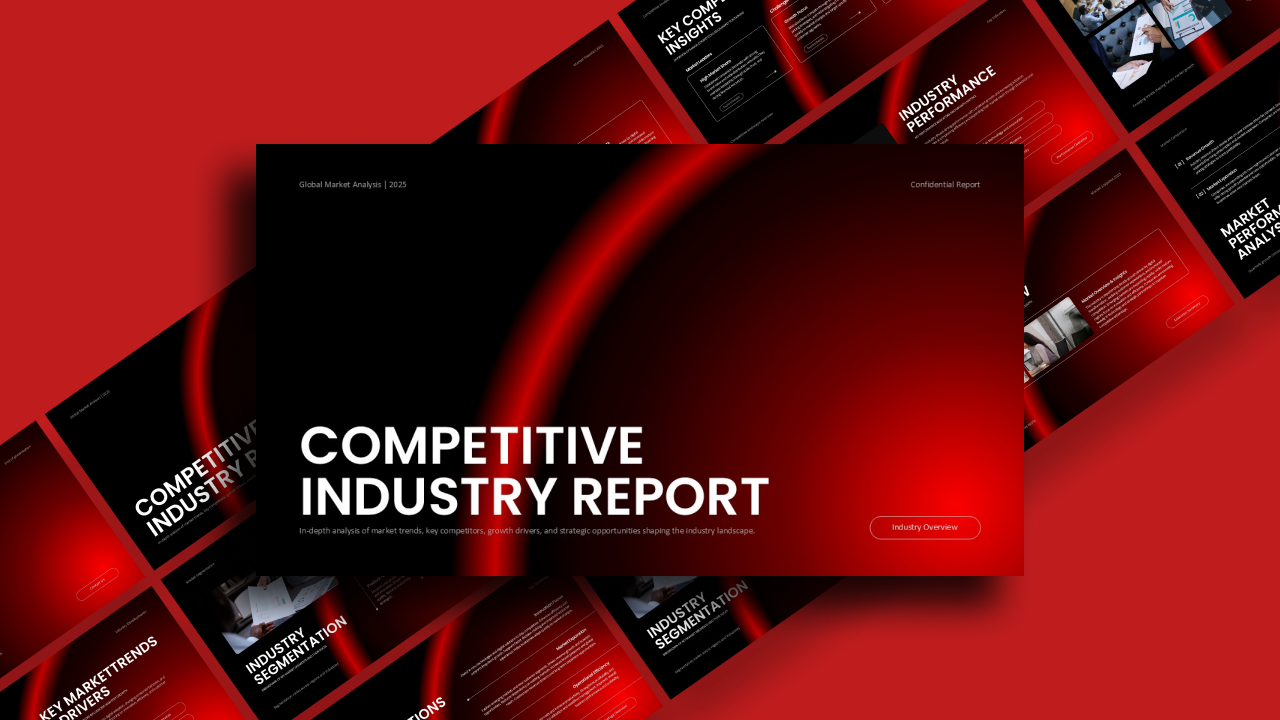
- Adjust Shape Fill or Glow Effects using your corporate hex codes if you wish to change the default red-and-black contrast theme.
Deliver Live or Export Handouts:
- Press F5 to jump straight into full-screen Presenter View for stage keynotes or virtual webinars.
- Go to File > Export > Create PDF/XPS Document to share presentation slide decks with event organizers, clients, or attendees after your talk.
Customizing in Canva
Access Your Template Copy:
- Click the provided Canva template link on SlideChef and select Use template for new design.
- A clean, fully editable copy will instantly save to your Canva account dashboard.
Drag-and-Drop Presenter Visuals:
- Upload your personal speaker headshots, event photos, and dashboard screenshots into the Uploads tab on the left sidebar.
- Drag your uploaded images directly over the pre-framed slide photo elements to replace them seamlessly.
Tailor Keynote Copy & Metric Cards:
- Double-click any headline, body paragraph, or stat callout (like the 500+ Successful Client Meetings on Slide 8) to type in your own metrics and talking points.
- Use the top text bar to change font sizes, letter spacing, or alignment without breaking the visual hierarchy.
Align Brand Palette & Lighting Tones:
- Click on the background cards, arrow badges, or gradient glow elements to modify colors.
- Select any element, open the Color Palette tool, and enter your brand’s primary hex codes to instantly adapt the dark theme to your agency or corporate branding.
Present Online or Download Multi-Format Files:
- Click Present in the top-right corner to present directly from your web browser during webinars or live meetings.
- Click Share > Download to save your deck as a PowerPoint file (.pptx), a high-quality PDF for distribution, or high-res PNG images for social promotion.