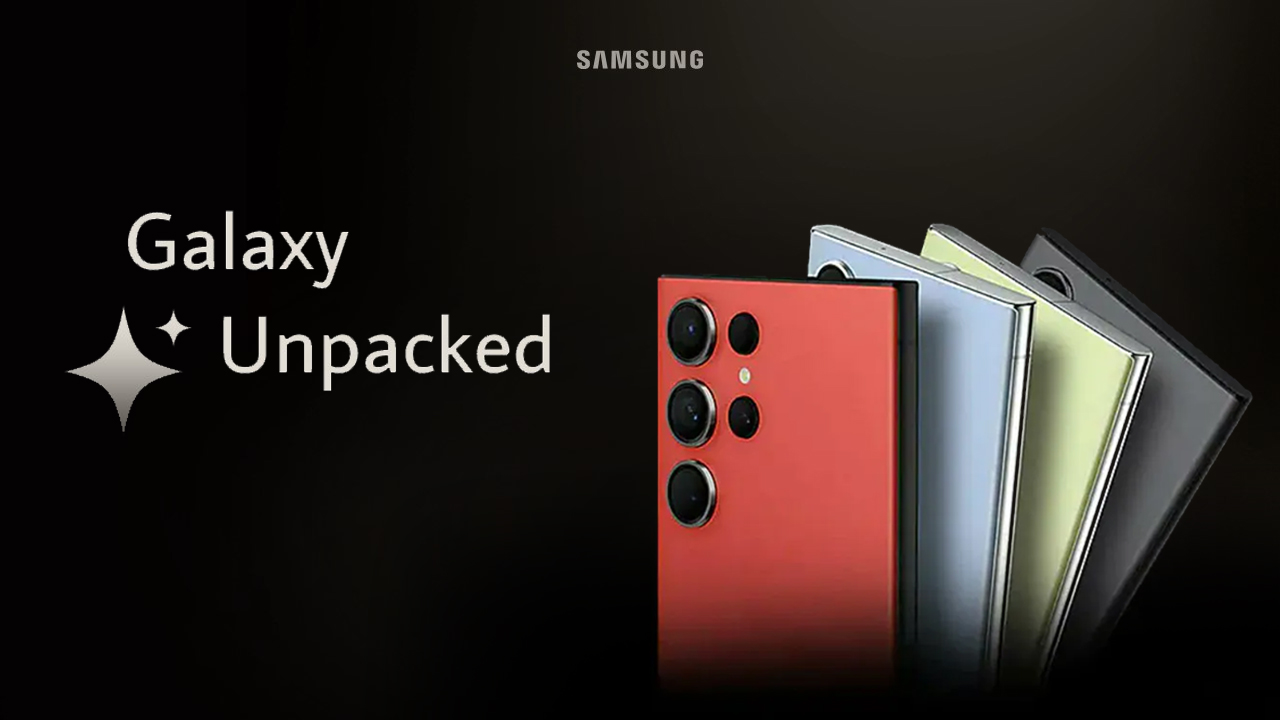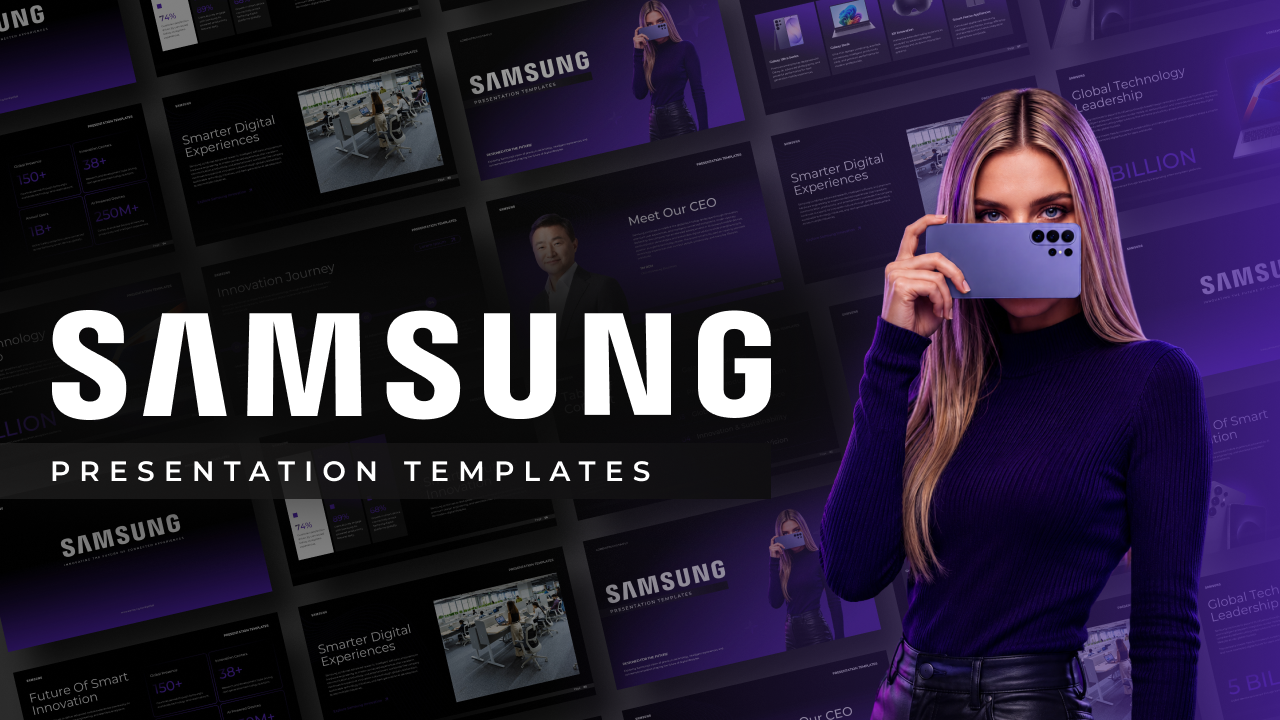

Download Samsung Unpacked Event 2026 Template
Item ID: SCF01702
PowerPoint,Canva
100% Fully Customizable
Free to use
Liked the template? Support SlideChef!
Give us Donation! Help to keep our Templates Free for ever
Hi there! We hope you’re enjoying SlideChef for your presentations. As a free platform, we rely on donations to keep things running. If you find our resources helpful, please consider a small donation. Thank you!
How to Use This Samsung Unpacked 2026 Event Template
Bring cutting-edge mobile innovations and sleek tech presentations to your audience effortlessly! Follow this step-by-step guide to edit your slides using either Microsoft PowerPoint or Canva:
How to Edit in Microsoft PowerPoint
- Step 1: Open and Unlock the File: Download the .pptx file to your computer, open it in PowerPoint, and click the yellow Enable Editing button at the top banner to unlock all text containers, glassmorphism cards, and product cutouts.
- Step 2: Customize Specs and Analysis: Click directly inside any text container across slides like Galaxy Z Fold 8 Ultra, Galaxy Z Flip 8, or Galaxy AI Ecosystem to update performance details, battery metrics, or camera specifications.
- Step 3: Swap Product Images and Media: Replace placeholder graphics or screenshots by right-clicking any device photo, choosing Change Picture > From a File, and uploading your custom product shots or event captures.
- Step 4: Update Translucent Feature Cards: Select individual semi-transparent feature panels, pill-shaped tags, or spec list boxes to tweak color fills, typography, and alignment to suit your presentation branding.
- Step 5: Present Live or Export Slides: Press F5 to deliver your tech analysis full-screen, or go to File > Export to save your deck as a PDF report or high-resolution images for social media sharing.
How to Edit in Canva
- Step 1: Save a Copy to Your Account: Click the provided Canva template link and select Use template for new design to open a fully editable copy directly on your Canva dashboard.
- Step 2: Edit Text and Typography: Double-click any header, bullet list, or technical spec callout to enter your custom market insights, product highlights, or event summaries using your preferred fonts.
- Step 3: Drag and Drop Device Visuals: Upload high-resolution device photos or product screenshots to your Canva media library, then drag and drop them straight into pre-set image frames to align them automatically.
- Step 4: Adjust Pastel Gradients and Layouts: Click on background gradient layers, glass overlay cards, or icon containers to adjust pastel tones, scale graphics, or reorder slide elements.
- Step 5: Present or Download: Click Present in the top-right corner to conduct live streams and webinars straight from your browser, or click Share > Download to save the presentation as a PDF or PowerPoint deck.