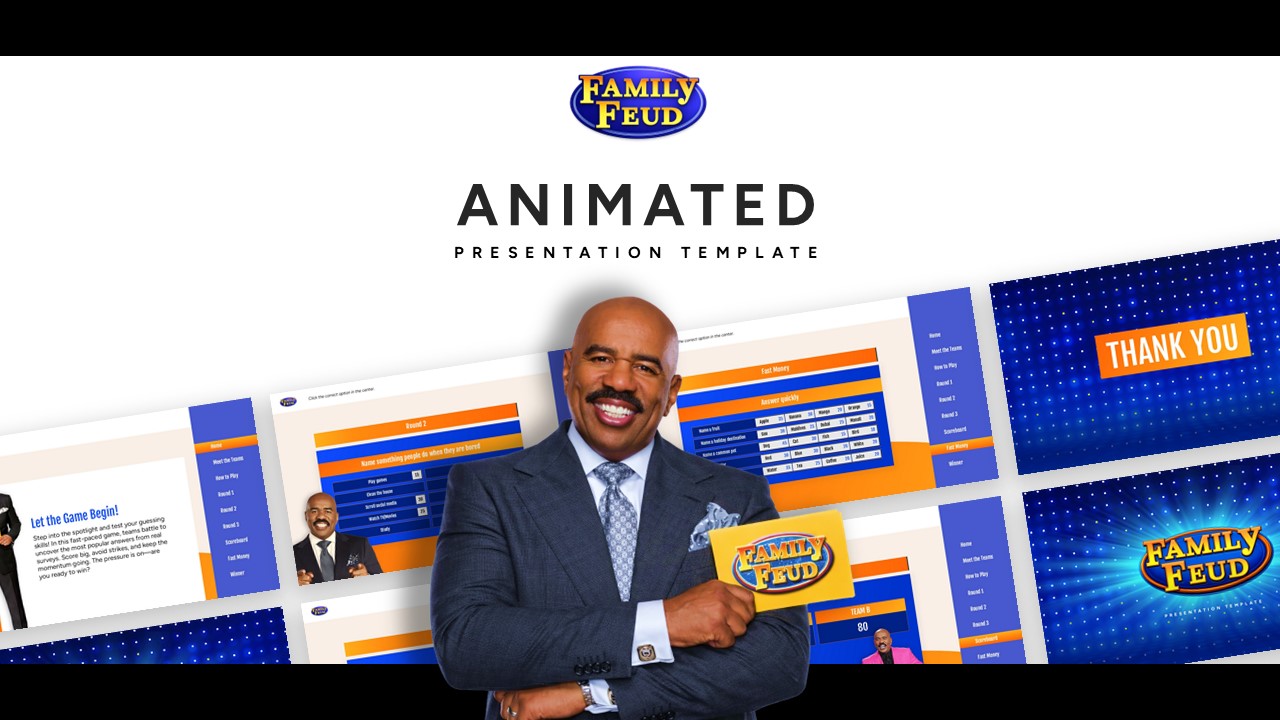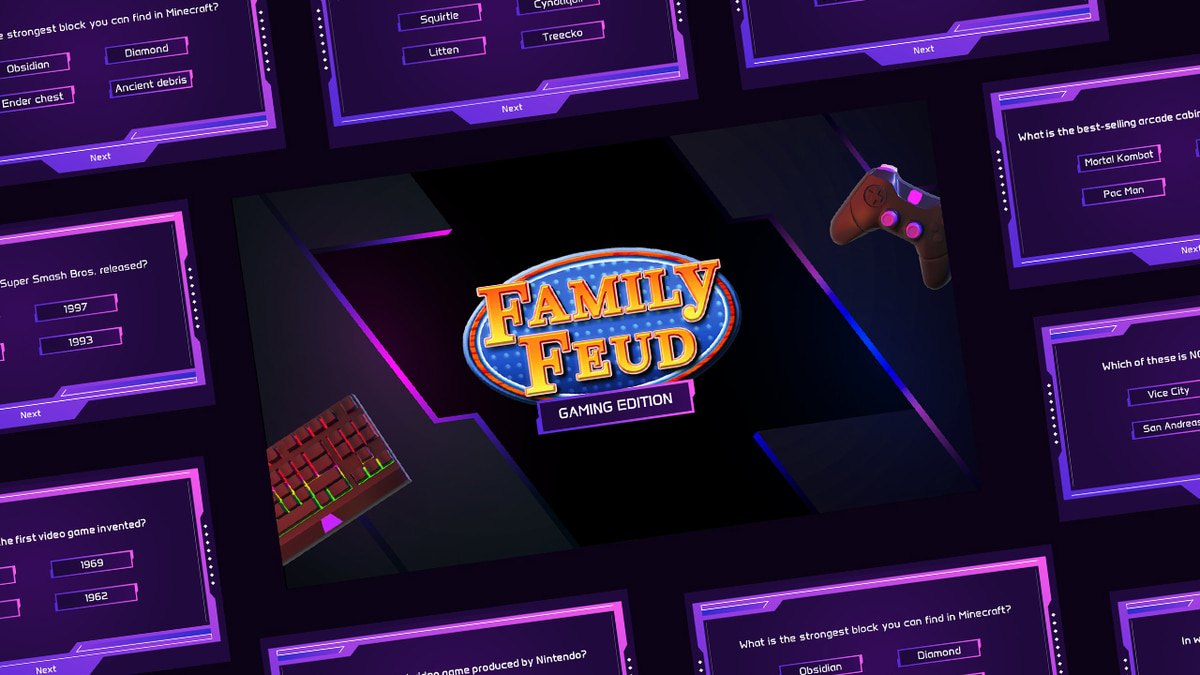

Download Classic Family Feud Background Template PPT, Google Slides & Canva
Item ID: SCF01016
Google Slide,PowerPoint,Canva
100% Fully Customizable
Free to use
Liked the template? Support SlideChef!
Give us Donation! Help to keep our Templates Free for ever
Hi there! We hope you’re enjoying SlideChef for your presentations. As a free platform, we rely on donations to keep things running. If you find our resources helpful, please consider a small donation. Thank you!
How to Use the Classic Family Feud Layout Template
Since this template provides the foundational game layout, you have complete freedom to edit the slides and design a custom game theme. Follow this step-by-step guide to build your game using either format:
For Microsoft PowerPoint Users
Step 1: Open the Layout: Download the template file to your computer. Open it in PowerPoint and click Enable Editing on the top notification bar to make the layout layers fully editable.
Step 2: Design Your Board Questions: Click directly inside the header text fields on the layout pages to type in your custom trivia prompts or official survey questions.
Step 3: Map Out the Hidden Answers: Click into the square layout grids on the board to fill them in with your specific answers and point values, arranging them from highest to lowest score.
Step 4: Build Multiple Rounds: Duplicate your favorite slide layouts from the left-hand thumbnail panel to add as many unique survey rounds or sudden-death face-offs as your game requires.
Step 5: Run Your Custom Presentation: Save your completed design theme, head to the Slide Show tab at the top menu, and select From Beginning to launch your custom game board full screen.
For Canva Users
Step 1: Copy the Theme Blueprint: Click your provided Canva access link to open the slides. Go to File in the top-left menu bar and select Make a copy to save the editable layout theme to your personal dashboard.
Step 2: Customize the Game Text: Double-click any placeholder text field on the board layout to instantly overwrite it with your own team names, points, and survey answers.
Step 3: Modify the Theme Colors: Click on individual layout elements—like the background panels, strike boxes, or board borders—to scale them or change the colors to match your specific party theme.
Step 4: Scale Your Trivia Game: Use the bottom slide tray to easily manage your game structure. Right-click any layout canvas and choose Duplicate page to instantly create a brand-new round layout.
Step 5: Present the Game Live: Review your final slide flow in grid view, then click the Present icon in the upper right corner to display your custom game theme full screen right from your browser.