
Table of Contents
- PowerPoint Basics – Beginners PowerPoint Tutorial
- What is PowerPoint? (And Why It Matters)
- Navigating the Interface: A Quick Tour for Beginners
- The 5-Step Workflow to Building Your First Presentation
- 3 Common PowerPoint Mistakes Beginners Must Avoid
- The Easiest Way to Master PowerPoint: Use a Professional Template
- The Easiest Way to Master PowerPoint? Use a Template
PowerPoint 101: The Ultimate Beginner’s Guide to Crafting Stunning PowerPoint Presentation
PowerPoint Basics – Beginners PowerPoint Tutorial
Microsoft PowerPoint is a presentation software used to combine text, images, and graphics into visual slideshows. To build an effective presentation as a beginner, you must master five core elements: planning a text outline, selecting a consistent design theme, inserting visual media, applying subtle slide transitions, and utilizing speaker notes for delivery. Ultimately, PowerPoint serves as a visual aid to support the presenter, rather than a script to read from.
For most people, opening Microsoft PowerPoint feels like staring at an overwhelming blank canvas. You know you need to build a compelling slide deck for your next pitch or meeting, but between alignment issues, typography choices, and endless feature ribbons, it is incredibly easy to get lost. This guide is your complete masterclass in PowerPoint basics. Below, we break down exactly how to navigate the software, avoid the most common beginner design traps, and go from staring at a blank screen to delivering an executive-quality presentation in just five simple steps.
What is PowerPoint? (And Why It Matters)
Microsoft PowerPoint is the industry-standard presentation software developed as a core component of the Microsoft Office suite. It empowers users to transform static text and complex data into highly visual, engaging slide decks that guide an audience through a structured narrative. Whether you are delivering a high-stakes startup pitch to venture capitalists, presenting quarterly financial earnings to a corporate board, or teaching an educational seminar, PowerPoint operates as the universal medium for professional storytelling.
The platform matters because human beings are inherently visual learners. An audience will rarely remember the granular details of a 50-page business document or a sprawling Excel spreadsheet, but they will remember a clear, visually supported narrative. When executed correctly, PowerPoint reduces cognitive load, clarifies your core message, and serves as a powerful persuasive tool that keeps decision-makers focused on your value proposition rather than distracted by raw data.
Navigating the Interface: A Quick Tour for Beginners
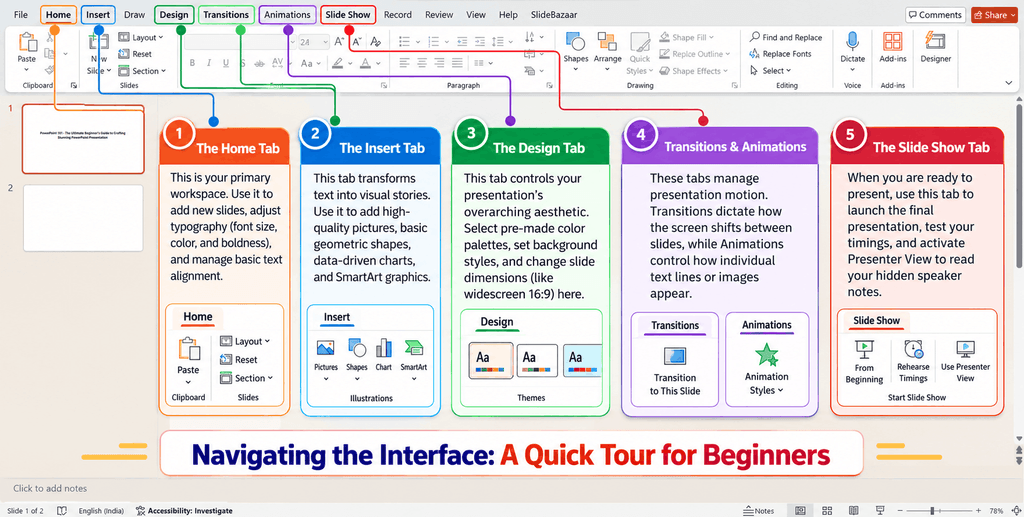
The PowerPoint interface, commonly known as the “Ribbon,” organizes hundreds of tools into logical tabs across the top of your screen. To avoid feeling overwhelmed, beginners only need to focus on five core areas to successfully build their first presentation:
- The Home Tab: This is your primary workspace. Use it to add new slides, adjust typography (font size, color, and boldness), and manage basic text alignment.
- The Insert Tab: This tab transforms text into visual stories. Use it to add high-quality pictures, basic geometric shapes, data-driven charts, and SmartArt graphics.
- The Design Tab: This tab controls your presentation’s overarching aesthetic. Select pre-made color palettes, set background styles, and change slide dimensions (like widescreen 16:9) here.
- Transitions & Animations: These tabs manage presentation motion. Transitions dictate how the screen shifts between slides, while Animations control how individual text lines or images appear.
- The Slide Show Tab: When you are ready to present, use this tab to launch the final presentation, test your timings, and activate Presenter View to read your hidden speaker notes.
The 5-Step Workflow to Building Your First Presentation
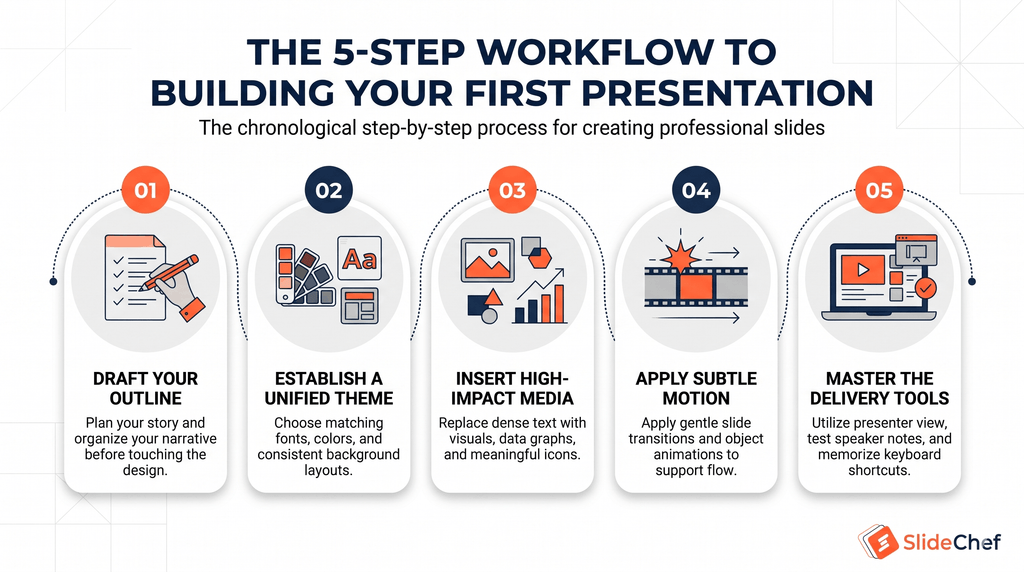
Building a professional slide deck does not require a degree in graphic design; it requires a structured process. Instead of jumping randomly between fonts, pictures, and animations, follow this chronological five-step workflow to build a clean, persuasive presentation from start to finish.
Step 1: Draft Your Outline Before Opening the App
The biggest mistake beginners make is opening a blank PowerPoint file and trying to write their speech while designing the slides at the same time. This almost always leads to cluttered layouts and a disconnected narrative. Before you ever open the software, map out your core story in a simple text document or on paper.
- Define the single overarching goal of your presentation.
- Break your narrative down into key talking points, assigning just one core idea per slide.
- Treat your slides as brief visual headlines for your audience, keeping your detailed talking points separate for your verbal delivery.
Step 2: Establish a Unified Theme
Once your outline is locked in, open PowerPoint and set your visual foundation before adding any content. A cohesive theme signals professionalism and makes your information easier to digest.
- Limit Your Color Palette: Stick to 3 or 4 complementary colors—typically a primary brand color, a secondary accent color, a dark shade for text, and a light background color for high contrast.
- Standardize Your Typography: Choose a maximum of two clean, sans-serif fonts (such as Arial, Calibri, or Montserrat)—one bold font for headings and a simple, readable font for body text.
- Shortcut the Process: Instead of manually setting colors and margins on a blank canvas, you can download a pre-formatted deck from SlideChef that already has professional typography and color theory built right in.
Step 3: Insert High-Impact Media
Human brains process visuals significantly faster than blocks of text. Once you begin populating your slides, actively look for ways to replace standard bullet points with engaging visual media via the Insert Tab.
- High-Resolution Imagery: Use crisp, relevant photos that reinforce the emotion or message of your slide. Avoid generic, pixelated stock clip art.
- Charts and Graphs: If you are presenting financial metrics or growth trends, convert raw numbers into clean bar charts, pie graphs, or line visuals so the takeaway is immediately obvious.
- Icons and SmartArt: Use simple vector icons and structured diagrams to illustrate step-by-step processes, timelines, or organizational hierarchies without relying on heavy paragraphs.
Step 4: Apply Subtle Motion
After your text and visuals are cleanly aligned, navigate to the Transitions and Animations tabs to add polish. When it comes to movement in PowerPoint, restraint is everything.
- Slide Transitions: Choose a single, subtle transition—such as Fade, Push, or Morph—and click Apply to All so the movement between slides feels seamless and consistent.
- Object Animations: Only animate individual elements when it serves a strategic purpose, such as revealing bullet points one by one to keep the audience from reading ahead. Avoid chaotic effects like spinning, bouncing, or boomeranging text, which instantly make a business presentation look amateurish.
Step 5: Master the Delivery Tools
A great slide deck is only as effective as the person presenting it. Before stepping into the meeting room or hopping on a video call, configure PowerPoint’s built-in delivery tools to support your spoken performance.
- Populate Speaker Notes: Click the Notes pane at the bottom of your workspace to type out your key talking points, data references, and vocal cues.
- Use Presenter View: When hooked up to a projector or secondary monitor, enable Presenter View in the Slide Show tab. This allows your audience to see only the clean slides while your personal screen displays a timer, your private speaker notes, and a preview of the upcoming slide.
- Memorize Keyboard Shortcuts: Press F5 to instantly launch your presentation from the very first slide, or press Shift + F5 to start presenting directly from the slide you are currently editing.
3 Common PowerPoint Mistakes Beginners Must Avoid
Even with a solid grasp of the basic tools, first-time presenters often fall into predictable design traps that undermine their message. Steering clear of these three fundamental mistakes will immediately separate your slide deck from amateur presentations:
1. The “Wall of Text” Trap (Reading from the Screen)
The most common mistake beginners make is treating a PowerPoint slide like a Word document. Loading a slide with dense paragraphs forces your audience to choose between reading the screen and listening to your voice—and human psychology proves they cannot do both simultaneously.
- The Fix: Follow the classic 6×6 Rule—use a maximum of six bullet points per slide, with no more than six words per bullet. Keep your slides strictly as visual headlines, and move your full talking script down into the private Speaker Notes pane.
2. Clashing Colors and Inconsistent Typography
Using five different fonts, neon background colors, and low-contrast text makes a presentation visually exhausting to read and instantly signals a lack of preparation. When every slide looks like it belongs to a different presentation, your audience spends more mental energy adjusting to the layout than absorbing your data.
- The Fix: Lock in a strict visual hierarchy before you start building. Use high-contrast pairings (such as dark navy text on a clean white or soft gray background), restrict yourself to two font families across the entire deck, and ensure your titles remain in the exact same position on every slide.
3. Overusing Chaotic Animations and Transitions
Because PowerPoint offers dozens of flashy effects—like spinning text, bouncing graphics, and origami slide transitions—beginners often feel tempted to test them all in a single presentation. In a professional setting, heavy animations are distracting, slow down your pacing, and cheapen your executive authority.
- The Fix: Treat motion as a subtle tool for focus, not entertainment. Stick to clean, nearly invisible transitions like Fade or Morph, and only use simple Appear animations when you need to reveal complex data points step-by-step.
The Easiest Way to Master PowerPoint: Use a Professional Template
Learning how to navigate the interface is a great first step, but mastering visual design—like balancing negative space, pairing typography, and aligning complex data grids—takes hours of trial and error. When you are working against a deadline for an upcoming pitch, client meeting, or classroom lecture, building a presentation from a blank white screen is rarely the best use of your time.
The smartest shortcut to looking like a seasoned presentation designer is starting with a foundation built by one. By leveraging SlideChef’s library of 1,000+ creative presentation templates, you can bypass the steep design learning curve entirely. Instead of starting from scratch, you get instant access to pre-formatted slide decks that work seamlessly across PowerPoint, Google Slides, and Canva.
Using a pre-built template gives beginners three immediate advantages:
- Zero Formatting Headaches: Skip the tedious process of manually aligning text boxes, building custom charts, and resizing shapes from scratch.
- Built-In Visual Hierarchy: Every slide comes pre-loaded with balanced color palettes, readable font pairings, and structured layouts designed to keep your audience focused.
- Faster Turnaround Time: Simply download a layout that fits your topic, plug your text outline into the placeholders, and achieve an executive-ready aesthetic in minutes.
Your time is best spent refining your core message and practicing your delivery—not wrestling with slide margins. Explore SlideChef’s collection of free presentation templates today and build your first high-impact slide deck in just a few clicks.
The Easiest Way to Master PowerPoint? Use a Template
Mastering the technical interface of PowerPoint is only the first step; mastering visual design takes hours of trial, error, and meticulous formatting. When facing a deadline for a critical pitch or meeting, starting with a blank white slide is rarely the most efficient use of your time. You should be refining your core message and practicing your delivery, not wrestling with text box alignments and color hex codes.
The smartest shortcut to building an executive-quality presentation is bypassing the design phase entirely. By leveraging SlideChef’s extensive library of ready-to-use Creative PowerPoint templates, beginners can instantly achieve a professional aesthetic without the steep learning curve.
Using a pre-built template provides three immediate advantages:
- Zero Formatting Friction: Skip the tedious process of manually aligning shapes, building custom charts, and adjusting margins from scratch.
- Built-In Visual Hierarchy: Every layout comes pre-loaded with balanced color palettes, readable font pairings, and strategic negative space designed to keep audiences focused.
- Rapid Turnaround: Simply select a deck that fits your industry, drop your drafted outline into the placeholders, and finalize your presentation in minutes.
Ready to stop struggling with slide design? Explore SlideChef’s collection of premium and free templates to build your first high-impact presentation with absolute confidence.
What is the 6×6 rule in PowerPoint?
The 6×6 rule is a presentation design guideline suggesting you use a maximum of six bullet points per slide, and no more than six words per line. This prevents text-heavy layouts and ensures your audience remains focused on your spoken words rather than reading the screen.
How do I start a slideshow from the beginning?
The quickest way to launch your presentation from the very first slide is to press the F5 key on your keyboard. If you want to start the slideshow directly from the slide you are currently editing, press Shift + F5.
Are PowerPoint templates free to use?
Yes, there are many free templates available. Platforms like SlideChef provide a massive library of high-quality, completely free presentation templates—alongside premium options—that are pre-formatted to work seamlessly across PowerPoint, Google Slides, and Canva.
How do I save a PowerPoint presentation as a PDF?
To share your deck without the recipient needing presentation software, save it as a PDF. Click the File tab, select Save As or Export, and choose PDF from the file format dropdown menu. This locks your custom fonts and layouts in place for easy emailing.
What is the best slide size for modern presentations?
The standard best practice is to use the Widescreen (16:9) slide size. You can set this in the Design tab. This dimension perfectly fits modern computer monitors, video call screens, and conference room flat-screen TVs without leaving awkward black bars on the edges.
How do I make an image background transparent in PowerPoint?
Select your inserted image, navigate to the Picture Format tab, and click Remove Background. PowerPoint will automatically highlight the background in magenta. Use the “Mark Areas to Keep” or “Mark Areas to Remove” tools to refine the selection, then click “Keep Changes.” For a detailed, step-by-step visual tutorial, read our complete Guide on How to Make a Picture Transparent in PowerPoint on the SlideChef blog.
About The Author





Related Blogs