

Table of Contents
How to Add Countdown Timer in PowerPoint
Easy Guide to Insert Timer for PowerPoint Presentation
We have all been in a workshop or pitch where the speaker completely loses track of time. While managing the clock is crucial for a successful presentation, constantly breaking eye contact to check your watch or phone instantly disconnects you from the audience. Surprisingly, despite being the industry standard for slide decks, Microsoft PowerPoint lacks a simple, built-in visual timer on its main dashboard for your viewers to see.
Fortunately, keeping your agenda strictly on schedule does not require any complex software. In this guide brought to you by the SlideChef presentation experts, we will show you exactly how to add a PowerPoint countdown timer directly to your slides using free add-ins, custom shape animations, and embedded video loops. Whether you are timing a 10-minute coffee break, running a live quiz, or managing a strict pitch limit, these simple workarounds will ensure your next meeting stays perfectly on track.
Why Use a PowerPoint Countdown Timer?
Integrating a visual timer into your presentation does more than just decorate a slide; it serves as a critical pacing tool for both you and your attendees. Timers are incredibly effective for enforcing strict time limits on high-stakes startup pitches, ensuring every presenter gets an equal opportunity to speak without throwing off the schedule. They are also perfect for managing interactive breakout sessions, adding a fun sense of urgency to live knowledge quizzes, or simply displaying a clear countdown for a 10-minute coffee break so everyone returns to the room exactly when expected.
Beyond simple time management, a visible, on-screen timer drastically boosts audience engagement. When attendees can actually see the clock ticking down, it sets clear expectations and eliminates the mental fatigue or uncertainty that often leads to people checking their phones. Furthermore, it keeps the presenter highly accountable. Instead of awkwardly breaking eye contact to check a wristwatch or guessing how much time is left in a segment, the speaker can pace their delivery seamlessly, ensuring that all core points are delivered smoothly without rushing the conclusion.
Option 1: Use Free PowerPoint Timer Add-ins (The Easiest Method)
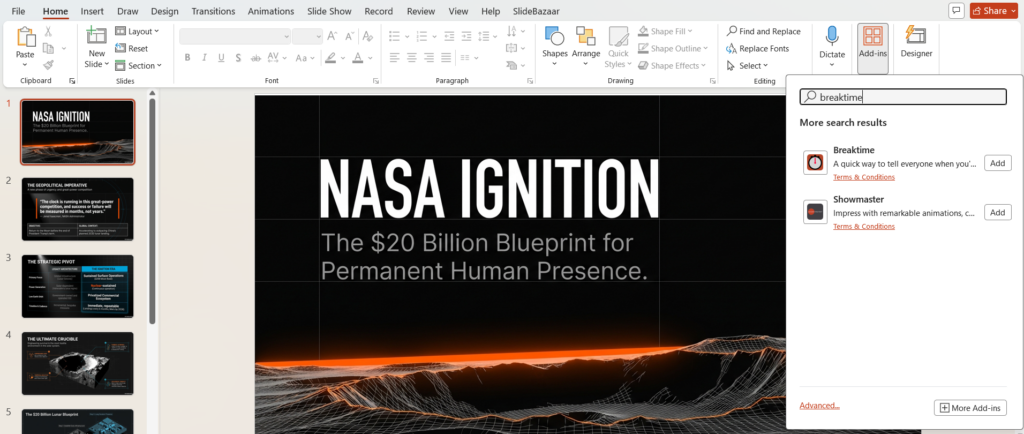
If you are looking for a quick and straightforward solution, using a PowerPoint add-in is by far the easiest method. Add-ins are essentially third-party mini-apps built directly into the Microsoft Office ecosystem, allowing you to seamlessly integrate extra features—like a functional countdown clock—without ever leaving your presentation window.
- Step 1: Navigate to the HOME tab on the main PowerPoint ribbon and click on Add-ins to open the Microsoft Office Add-ins store.
- Step 2: Search the store for a specific timer. We recommend looking up the popular “Breaktime” add-in. Once you find it, simply click Add.
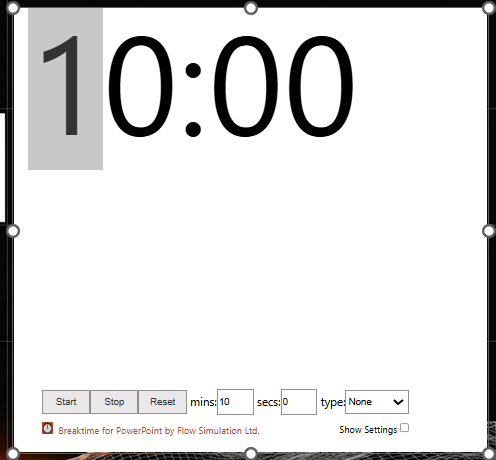
- Step 3: The timer module will immediately generate on your active slide. You can now drag and place the timer exactly where you want it, set your specific countdown duration (such as a 5 or 10-minute break), and adjust the background settings to complement your slide’s design.
Pro Tip: While this method is incredibly fast, keep in mind that some strict corporate firewalls or IT policies actively block the download of external add-ins. If you run into a network error or cannot access the store, you will need to rely on the custom animation method outlined in the next section.
Option 2: Build Your Own Timer Using Animations
If corporate IT policies block third-party add-ins, or if you simply prefer a completely custom design that perfectly matches your brand guidelines, you can build a highly effective timer using PowerPoint’s native shape animations. This method is incredibly reliable because it does not require an internet connection to function during your presentation. Here are the two most popular DIY methods.
How to Make a Progress Bar Timer
A progress bar is a sleek, unobtrusive way to manage time without distracting your audience from the core content on the screen.
- Step 1: Navigate to Insert > Shapes and draw a long Rectangle across the very bottom (or top) of your slide.
- Step 2: Go to the Animations tab on the main ribbon and select the Fly Out exit effect.
- Step 3: Click on Effect Options and choose the direction you want the bar to move (e.g., “To Left”).
- Step 4: Open the Timing settings in the animation pane and set the Duration to your desired time limit. (For example, type in 60.00 for a one-minute timer). When you run the presentation, the bar will slowly and smoothly shrink off the screen as time runs out.
How to Make a Circular Countdown Clock (Wheel Animation)
If you are looking for a more traditional visual clock for a break screen or a live quiz, the wheel animation creates a perfect pie-chart-style countdown.
- Step 1: Go to Insert > Shapes and draw a large Oval (hold the Shift key while drawing to make it a perfect circle) to serve as your background base. Place a second, slightly smaller Oval on top of it in a contrasting color.
- Step 2: Select the outer circle, navigate to the Animations tab, and choose the Wheel exit effect.
- Step 3: Adjust the Duration in your animation settings to match the exact length of your countdown (for instance, input 300.00 seconds for a 5-minute break). As the clock ticks down, the top circle will gradually wipe away in a smooth radial motion, visually communicating exactly how much time is left.
Option 3: Insert a YouTube Countdown Video
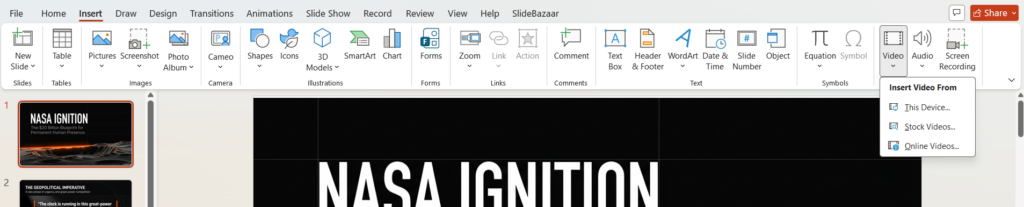
For those who want a highly visual, stylized timer without dealing with custom shape animations or third-party add-ins, embedding a YouTube video is the best non-technical workaround. This method gives you instant access to thousands of pre-made, aesthetically pleasing countdowns with just a few clicks.
- Step 1: Go to YouTube and search for a specific visual timer that matches the tone of your presentation (for example, search for a “5-minute neon countdown timer” or a “clean corporate 10-minute timer”). Once you find the perfect video, simply copy its URL.
- Step 2: Open your presentation, navigate to the exact slide where you need the timer, and go to Insert > Video > Online Video on the main PowerPoint ribbon.
- Step 3: Paste the copied YouTube link into the prompt box and insert the video. From there, you can resize the video player to fit perfectly within your slide layout. Finally, go to the playback settings on the top ribbon and set it to “Automatic” so the countdown starts immediately and seamlessly exactly when you reach that slide.
Pair Your Timer with Stunning Presentation Templates
A great PowerPoint countdown timer is only half the battle. If you are setting a timer for a 15-minute brainstorming session, a live data exercise, or a corporate workshop break, the slide holding that timer needs to look professional and engaging. Sticking a timer on a blank white slide is a quick way to lose your audience’s attention and dilute the impact of your session.
Instead of spending hours designing the perfect layout from scratch, you can download beautifully crafted, ready-to-use slides directly from the PresentoVerse library.
- Exploring dynamic motion? Dive into our extensive library of fully animated templates. These pre-built decks feature smooth, built-in transitions and professional motion graphics that serve as the perfect high-energy backdrop for your custom countdown clocks.
- Visualizing complex concepts? Drop your timer directly onto our premium, fully editable infographics. Whether you are running a timed strategy session or a quick coffee break, these powerful visual assets ensure your audience remains engaged while the clock ticks down.
Stop wrestling with basic formatting and start delivering presentations that actively captivate your audience. Explore the full collection of professional animated templates and infographics on PresentoVerse today, and elevate your next meeting in minutes.
About The Author




Related Blogs